Hourly meeting room reservations
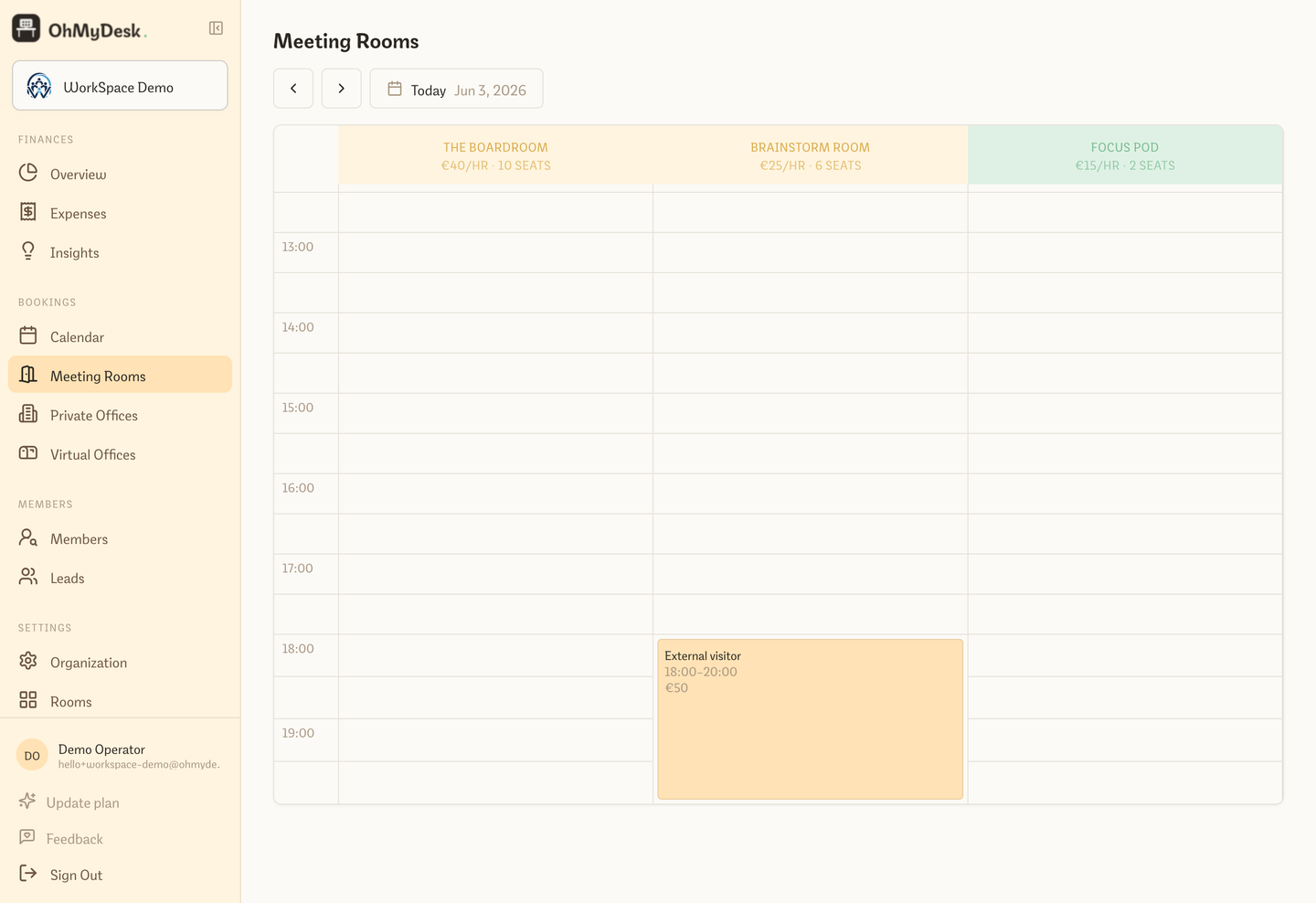
Separate hourly grid for conference rooms with their own pricing and rules. Avoid conflicts automatically and track meeting room revenue alongside desk revenue without mixing them up. Half-hour granularity by default.
What you get
- Click or drag across hourly time slots to prefill an exact reservation range; operators can expand closed hours and confirm an exception while public visitors remain inside the room schedule
- Set operating hours per day of the week (e.g. Mon–Fri 7:30am–9pm, Sat 7:30am–6pm), with an optional override per room — enforced on every booking, not just shown in the UI
- Per-room pricing (different rates for different rooms)
- Cleanup buffer: keep 15 or 30 minutes free after each booking so staff can reset the room. Online guests and members never get those minutes; operators can book over the band after a warning, or turn on strict mode to block it for everyone
- Optional per-room rule, on by default: an hourly booking is free when that member also has an active desk booking on the same date; whole-day bookings always keep their tariff
- Rooms shows desk areas and meeting rooms together: see desk counts, meeting room capacity and hourly rates in one place, then add or edit a room straight from its list
- Booked-by attribution and contact info on every reservation
- Revenue tracked separately from desks for clean reporting
- Dedicated public meeting-room booking page — visitors reserve a room with no account, and double bookings are blocked
- Hourly bookings can collect payment online when meeting-room Stripe is enabled — slot held for 30 minutes during checkout, cancelled if unpaid, confirmed on payment
- Sell prepaid hour packs to regulars (e.g. tutors) from named packs on the Plans page or at a custom price — every sale and top-up creates a charge, the balance burns down automatically as bookings happen, and a booking that is free with that day's desk booking uses no hours
- Price extras such as coffee and snacks per person: the booking asks how many people are coming and charges every one of them, online or on the member's balance — and limit any extra to the rooms that offer it
- Repeat admin bookings daily, weekly, monthly, or on a custom interval — preview every date for clashes and closures before confirming the series
- Opens from the Calendar page: use the Desks | Meeting rooms switch under the title (shown once your space has a meeting room). Old links and alert emails to the meeting room calendar keep working
Frequently asked questions
- Where do I add or edit a meeting room?
- Open Rooms in the sidebar. Desk areas and meeting rooms are listed together, with desk counts, meeting room capacity and hourly rates. Choose Add meeting room to create one, or open a room from its list to edit it.
- Where do I find the meeting room calendar?
- Open Calendar in the sidebar and switch from Desks to Meeting rooms under the page title. The switch appears once your space has at least one meeting room; add the first one with Add meeting room on the Rooms page. On a phone, the Calendar tab covers both, and Create still offers Book meeting room. Older links and alert emails to the meeting room calendar still work.
- Can I book a meeting room for the same time every week?
- Yes. Tick Repeat booking when you book a room and pick Daily, Weekly, Monthly or a custom interval (for example every 2 weeks on Monday and Wednesday). A series can run for up to 6 months. Before you confirm, OhMyDesk shows which dates are free, taken or closed. You can later cancel a single booking or the rest of the series.
- How do I leave time to clean a meeting room between bookings?
- Set a cleanup buffer of 15 or 30 minutes on the room. Guests and members who book online never get those minutes. Operators can still book over the buffer after a warning, or you can turn on strict mode to block it for everyone.
Try every feature free for 3 months.
No credit card. Set up your space in under two minutes.
Start Free Trial