Public booking page: self-serve desks, passes, and rooms
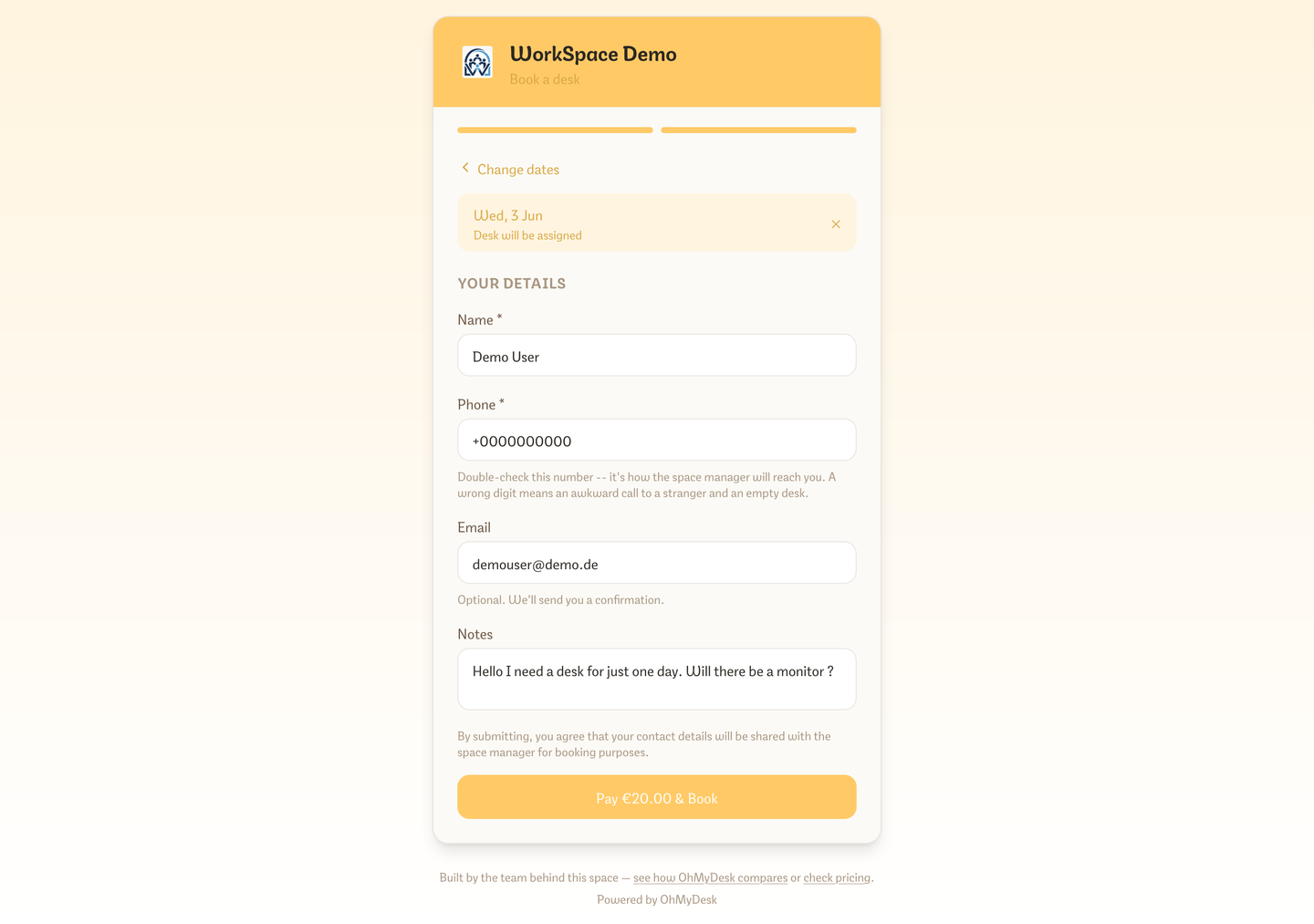
Every space gets a public URL at /book/your-slug. Visitors pick Desks, Plans, Meeting rooms, or Offices, see live availability, and confirm without an account. Turn on Stripe to take payment before the booking is confirmed; embed the same flow on your website with one snippet.
Public booking is how a 10-desk operator sells day passes at 11 pm without answering email. The catalog mirrors what you enabled in Settings: day desks, flex bundles, weekly and monthly passes, named meeting rooms, and office enquiries. Paid flows use your own Stripe account; free desks and bank-transfer options stay available. Your AI Concierge on Telegram (WhatsApp in early access) answers prospects with your live prices and sends them to this same link — Autopilot on the operator side books and invoices after you confirm in chat.
Who it’s for: Independent coworking spaces (roughly 5–50 desks) that want self-serve revenue on their own domain or Instagram bio, without a marketplace commission. Also for spaces that already use OhMyDesk internally and need guests and flex members off the admin calendar.
What you get
- Optional bank transfer for day desks and meeting rooms — reserve with an invoice, then confirm payment or cancel from Invoices; passes keep their current checkout
- Real-time availability — visitors see live desk and meeting room slots
- Office photos — up to eight photos of your space at the top of the page, so visitors see it before they book
- Product photos — up to five photos per meeting room, private office, desk pass or plan, and virtual office plan, plus the description you already write in Settings. Visitors see a thumbnail on each product card, and the full photo strip after they pick
- Contact bar — phone, email, website, Telegram, WhatsApp and Viber icons. In Contacts & Space → Messengers turn each one on or off for your booking page, rental shop and member portal; WhatsApp and Viber use your space phone or a number of their own, and Telegram with no handle sends visitors to your OhMyDesk AI Concierge. Instagram and LinkedIn are not shown on public pages
- Copy the right public link directly from the Calendar (Desks or Meeting rooms view) or Private Offices when you are ready to share it
- The public catalog lists every day-pass, flex, weekly, and monthly variant you sell, plus each named meeting room
- The Desks tab lists every option under the date picker in two groups, each sorted by length: "Or pay once" (Day Pass, packs that do not renew, fixed hot desk passes) and "Or subscribe to a plan" (packs that renew monthly, hot desk plans billed per calendar month marked "Renews monthly", and weekly and monthly passes when you list them there)
- Pay or request: in Booking page → Desks the chips (Day pass, Hot desk passes, Flex day bundle, Weekly pass, Monthly pass) set which pass types guests pay for by card; for the types you leave off, choose whether they show on the page as a request or stay hidden
- Weekly, monthly and hot desk passes ask for the start date first, with a calendar that only offers the dates that fit, and only then ask for the guest's details
- Choose what your booking page sells: open Booking page → Desks, Rooms or Offices, pick what is sold by card (Pay or request under Desks, Card payment for under Rooms and Offices: day desks, flex, weekly and monthly passes, hot desk, meeting rooms, offices), and switch Show on page on or off on each plan card. Your real booking page sits next to the settings and changes as you edit; Save puts it live. A plan switched off leaves the page without being deleted, and an old link can no longer buy it. A hint appears when more than 5 plans are on the page
- One editor with your page beside it: Booking page shows the settings on the left (Desks, Rooms, Offices, Visitors, Look, Share & embed) and your real booking page on the right, and the page changes as you edit, before you save. All changes wait for one Save, with Discard next to it; on a phone a Preview button opens your page
- Arrange the Desks list by dragging: in Booking page → Desks, drag passes and plans into the order you want (or use the arrows), choose whether one-off and recurring plans show in two groups and which comes first, and copy a link that opens just one card. Reset to by length restores the usual order; guests see nothing new until you Save
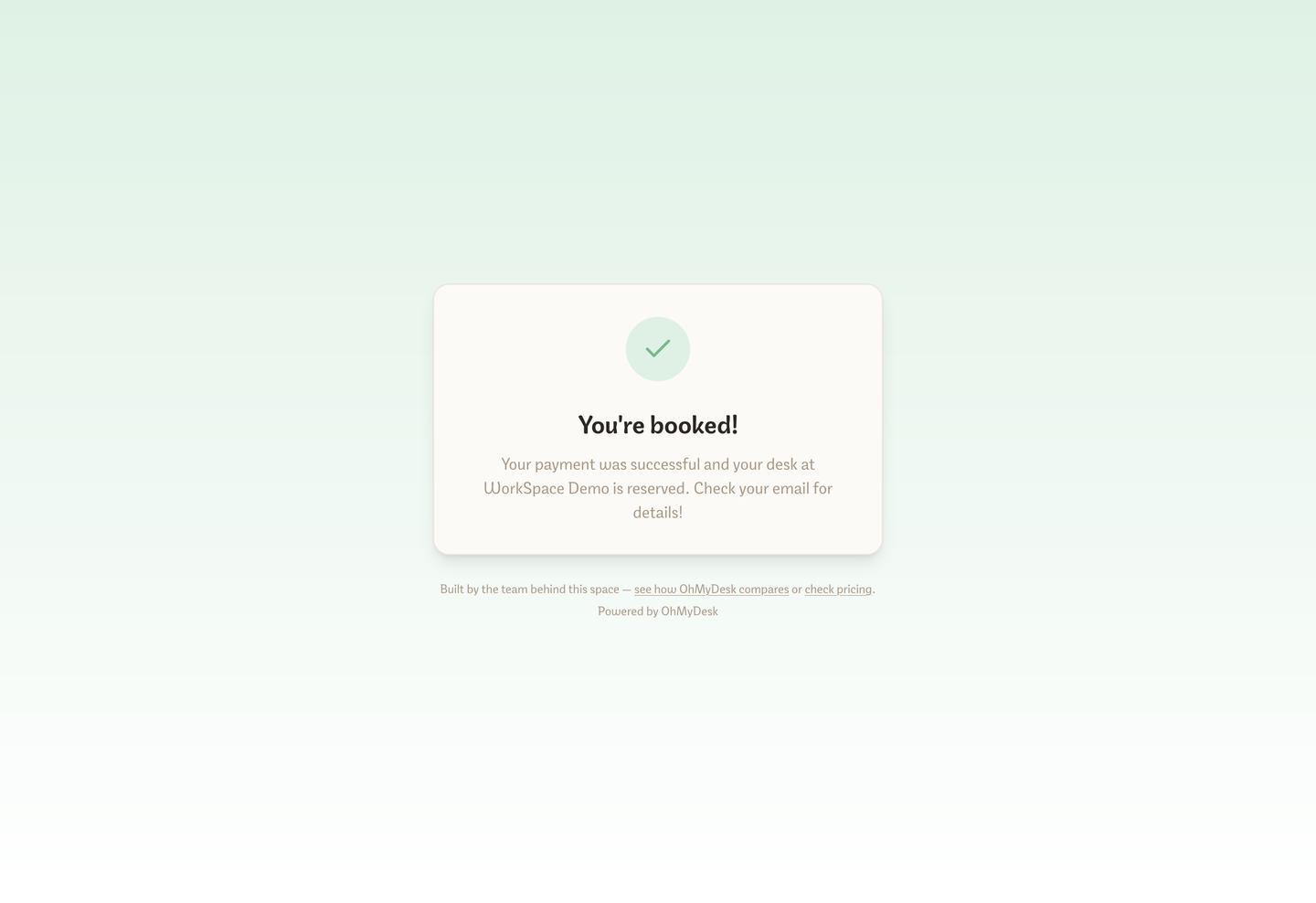
- After a guest pays by card for a day desk, a desk pass or a hot desk pass, the thank-you page shows the booked days and desk, the email address the confirmation went to, and a member portal button (when Invite to portal on booking is on), so a typo in the email is visible at once and a guest whose email bounced still reaches the portal
- Shape the header on the Look tab: hide your logo, write your own line under the space name, hide the progress bar, or change the heading above the dates. A short tour shows owners around Booking page the first time, and Copy prompt hands ChatGPT, Claude or Grok a ready prompt to link every plan, or embed the page, on your own website
- Hot desk passes online: tick Hot desk passes and your hot desk tiers appear on the page. A guest picks a tier and a start date and pays by card; OhMyDesk creates the member, starts the plan, records the paid invoice and payment, and sends the confirmation, within your hot desk seats
- No account required — fill name, email, dates and submit
- Optional automatic member matching links a booking only when email or phone identifies one member — never by name
- Choose what a new online visitor becomes in Settings → Booking page: a lead in your Leads pipeline first, or a member right away with the booking on their name; you can also require an email on every public form. A lead card disappears on its own when the same email or phone becomes a member
- When your space charges VAT, prices show your own tax word (VAT, MwSt., ДДС, PDV or anything else), set under Settings → Billing & invoices
- Phone field with a country flag picker: the country is pre-selected from where the guest connects and numbers are saved in international format, so you can always call back
- Public booking settings are grouped by desk, room, and office flow, with the website embed snippet in its own card
- Embed the booking flow on your own website as an inline widget, a popup from your own button, or a floating Book now badge. The popup grows to fit each booking step up to the screen height and goes full screen on phones; set the size with data-ohmydesk-width and data-ohmydesk-height
- Instant Telegram notification to admins on every new booking or office request
- Desk and meeting-room bookings confirm directly; office requests stay in Leads unless you turn on paid office reservations
- One-tap switcher between Desks, Plans, Meeting Rooms, and Offices so visitors can browse between booking options from any page
- Booking pages in English, German, Spanish and Greek, opened in the visitor’s browser language, with your space default as the fallback. Your website can choose the language with ?lang= on the link or data-ohmydesk-lang on the embed
- Stable thank-you URL and a JavaScript event for Google Ads and GA4 when a booking completes — copy them from Settings → Booking page
- Post-visit review email — after a desk visit or flex day burn, send one follow-up with your Google Maps or review link (delay and cooldown configurable in the Communication Hub → Request feedback from guests). Every review email has an Unsubscribe link (and Gmail's own Unsubscribe button); a guest who opts out gets no more review emails, but booking confirmations and door codes still arrive
- Coupon codes (off until you turn them on): guests of a paid day desk or a one-off weekly, monthly, flex or hot desk pass can enter a code you created in Plans → Coupons, or arrive through a link that already carries it, and pay the discounted price in Stripe Checkout. Each code lists the products it discounts. A 100% coupon, or an amount coupon that covers the desk price for all chosen days, makes the desk free: with no paid extras, the guest confirms with no card
- Private office booking switch: under Settings → Booking page, turn it off and the Offices tab (listed private offices and virtual-office plans) disappears from your booking page; each office also has its own List on public page switch for when the tab is on
- Visitors can add extras you marked public, such as coffee or a locker, when they buy a day, weekly, or monthly desk pass online and pay for them in the same checkout
- Add your own Terms of Use and privacy policy as a PDF or a link: every checkout shows “By placing this order, I accept the Terms of Use” and asks visitors to confirm your privacy policy before they book
Frequently asked questions
- Can I embed the booking page on my own website?
- Yes. In Settings → Booking page, copy the embed code into Wix, WordPress, Squarespace or any HTML page. Choose an inline widget, a popup opened from your own button, or a floating Book now badge. The popup grows with each booking step up to the screen height and goes full screen on phones; developers can set the size with data-ohmydesk-width and data-ohmydesk-height.
- Do visitors need an OhMyDesk account?
- No. They enter name, email, and phone (with country-aware formatting). Desk and room bookings confirm on the spot. An office request creates a Leads card; with Stripe office payments on, a company can instead reserve a free office by paying the first month. Optional member matching links the booking only when email or phone uniquely matches an existing member — never by name alone.
- Which languages does the public booking page support?
- English, German, Spanish, and Greek. The page opens in the visitor’s browser language, with your space default when the browser language is not one of these. To choose the language from your own website, add ?lang=el (or en, de, es) to the booking link, or data-ohmydesk-lang="el" to the embed code. Operator emails can follow the member’s language; marketing pages for OhMyDesk itself stay English-only.
- How do paid day passes and plans work with Stripe?
- Connect your own Stripe keys under Settings → Integrations → Stripe. Toggle which products charge online. Visitors complete Stripe Hosted Checkout; a webhook confirms the booking and creates a paid invoice. OhMyDesk never holds card data or takes a booking fee.
- What is the difference between the Desks, Plans, Rooms, and Offices tabs?
- Desks sells day passes and flex bundles with a date picker. Plans lists weekly, monthly and hot desk passes, where the guest picks a start date first. Rooms is hourly or whole-day meeting room booking. Offices lists your private offices: a request goes to Leads for you to review, or, with Stripe office payments turned on, a company reserves a free office by paying the first month online. An occupied office only takes a register-interest request.
- Can I choose which plans my booking page sells?
- Yes. Open Booking page → Desks: pick the types sold by card under Pay or request, and switch Show on page on each plan card, then Save. Switching a plan off removes it from the page without deleting it, and an old link can no longer buy it. OhMyDesk shows a hint when more than 5 plans are on the page, because guests choose faster from fewer.
- Can I see my booking page change while I edit its settings?
- Yes. Booking page shows your settings on the left and your real booking page on the right, and the page updates as you edit, before you save. Changes wait for one Save, with Discard next to it. In Desks you can also drag passes and plans into the order guests see.
- What does a guest see after paying by card?
- The thank-you page shows the booked days and desk, the email address the confirmation was sent to, and a button into the member portal when Invite to portal on booking is on. The button shows only to the person who paid: a new member gets an open-portal link, an existing member with a login gets a sign-in button.
- Can guests buy a hot desk pass on my booking page?
- Yes. Pick Hot desk passes under Booking page → Desks → Pay or request, and Save. A guest picks a tier and a start date and pays by card. OhMyDesk creates the member, starts the hot desk plan, records the paid invoice and the payment, and sends the confirmation. Online sales respect your hot desk seats: one desk per member unless you set your own ratio.
- Can I hide private offices from my public booking page?
- Yes. In Settings → Booking page, turn off Private office booking and the Offices tab disappears for visitors, including virtual-office plans. Turn it on again and the tab returns with the offices you listed. Each office also has its own List on public page switch on the Private offices page, so you can show some offices and keep others off the page.
- Can the AI Concierge send people to public booking?
- Yes. Connect the AI Concierge in Settings → Integrations and it answers prospects on Telegram (WhatsApp is in early access), grounded in your real hours, prices, and live desk availability. Every reply nudges toward your /book/your-slug link, so a late-night question can turn into a booking.
Try every feature free for 3 months.
No credit card. Set up your space in under two minutes.
Start Free Trial